Super Mario Galaxy Multiworld Setup Guide
Required Software
- Archipelago Multiworld Suite.
- Dolphin Gamecube/Wii Emulator
- Your American ISO file, probably named
Super Mario Galaxy (NTSC-U).iso. Support for other versions is planned in the distant future
Installation Procedures
Download and install the Archipelago Multiworld Suite from the link above, making sure to install the most recent version.
Acquire the most recent APWorld from the Releases page and place the smgalaxy.apworld in the custom_worlds folder of your Archipelago install
Download and install the Dolphin Gamecube/Wii Emulator from the link above, making sure to install the most recent version (minimum 2503). Run the emulator at least once to make sure it is working.
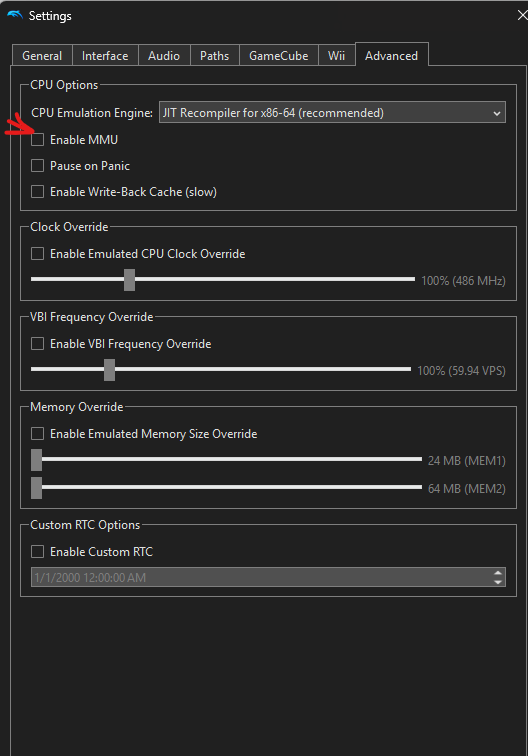
Make sure Dolphin's MMU (Memory Management Unit) is disabled / un-checked. This is found under the Options Menu in Dolphin > Configuration > Advanced tab. See screenshot below for reference:
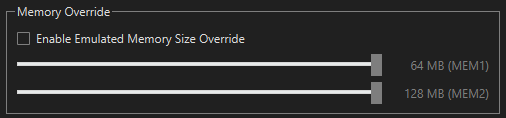
- Additionally, make sure that Emulated Memory Size Override on the same screen is disabled.
- Note for Windows users: you may experience some issues with patching the ISO if your file is stored on OneDrive.
Create a Config (.yaml) File
What is a config file and why do I need one?
Your config (YAML) file contains a set of configuration options which provide the generator with information about how it should generate your game. Each player of a multiworld will provide their own config file. This setup allows each player to enjoy an experience customized for their taste, and different players in the same multiworld can all have different options.
Where do I get a config file?
You have a few options on how to make your YAML config file.
The easiest way is to open the Options Creator in the Archipelago Launcher. Run the ArchipelagoLauncher.exe from your
Archipelago install and open the Options Creator. On the left side is a list of all the games you have in your
custom_worlds and all the core games. Until a future update comes, you will have to scroll through the games to find
the one you would like to play. After you select it, the options for that game will appear in the right side of the screen.
After filling in your options, you will be able to export the file to use for yourself or give to the host.
Your second option is also through the Archipelago Launcher. Run the ArchipelagoLauncher.exe from your Archipelago
install and click Generate Template Options. This will produce a /Players/Templates folder in your Archipelago
install, which contains default config files for every game in your custom_worlds and lib/worlds folder.
You can manually edit the config file using a text editor of your choice.
Alternately, the Player Settings page on the website (if this game is present there) allows you to configure your personal settings and export a config file from them.
Verifying your config file
If you would like to validate your config file to make sure it works, you may do so on the YAML Validator page.
Generating a Single-Player Game
- After modifying your yaml, place it into your Archipelago/player folder
- Alternately, navigate to the Player Settings page, configure your options, and click the "Generate Game" button.
- Open the Archipelago Launcher and click "Generate". This will create a zip file in Archipelago/output
- You will need to open this .zip to get your .apsmg patch file if you are not using the Archipelago website
- Navigate to the Archipelago website and go to the Host Game page (top right menu)
- Click upload file and pass it the .zip created in your output folder
- Click the "Create New Room" link. You are now able to download your patch file from here.
- Run the ArchipelagoLauncher.exe and click
Open Patch. Select your.apsmgpatch file. You will be prompted to locate your Super Mario Galaxy ISO the first time you do this.- This action will automatically run the Super Mario Galaxy Client (and connect to the webhost if the patch was downloaded from there).
- The patch will be placed in the same folder as your patch file by default.
- You will not need to patch the game every time, and can simply run the
SMGClientfrom the list on the right of the Archipelago Launcher to continue later.
- Open Dolphin and from Dolphin, open your newly patched Super Mario Galaxy ISO. Load all the way into a brand new save file, and pause.
- Ensure that "Enable GPU Overclock" and "Emulated Memory Size Override" are both off in your Dolphin settings
- You must use a brand new save file, not a New Game Plus file
- In the server page, there will be a port number. Copy this port number into the top of your SMGClient if it did not populate on its own.
- The field should read
archipelago.gg:<port number>
- The field should read
- Once you have loaded into the game, click the
Connectbutton at the top of the SMGClient. You are now connected and ready to play!- The client takes around 10 seconds to finish connecting
- Unfortunately, due to the nature of some checks, you must be connected to a server while playing. Please keep a link to the webpage on hand
- To rejoin the room later, you need to open the webpage, open the SMG Client through the Archipelago Launcher, and open the patched ISO with Dolphin. Then you can click connect on the SMG Client so long as the port matches what is shown on the webpage.
Joining a MultiWorld Game
Obtain your patch file and create your ROM
When you join a multiworld game, you will be asked to provide your config file to whoever is hosting. Once that is done, the host will provide you with either a link to download your patch file, or with an APSMG patch file that they have extracted from the zip.
Put your patch file on your desktop or somewhere convenient. Open the ArchipelagoLauncher.exe and click Open Patch.
This should automatically launch the client, and will also create your ISO in the same place as your patch file. On first time patching, you will be prompted
to locate your Super Mario Galaxy ISO
Connect to the client
When the ISO patched, the Super Mario Galaxy client (SMGClient) should have also automatically launched in the background. If it did not, please check the log in your Archipelaog/logs folder. If this is its first time launching, you may be prompted to allow it to communicate through the Windows Firewall. You must reopen the client each time you connect to a different randomized ISO.
- Open Dolphin and from Dolphin, open your newly patched Super Mario Galaxy ISO
- In the server page, there will be a port number. Copy this port number into the top of your SMGClient.
- The field should read
archipelago.gg:<port number>
- The field should read
- Once you have loaded into the game, the client should log that Dolphin has been connected. Click the
Connectbutton at the top of the SMGClient. If the port number is correct, you are now connected and ready to play!- Unfortunately, due to the nature of some checks, you must be connected to a server while playing